What you need before you start an IPTV setup
A smooth IPTV setup takes about ten minutes when four things are ready:
- A compatible device: a Smart TV, Firestick, Android TV box, Apple TV, phone, tablet, computer or MAG box.
- An IPTV player app: the app that plays your channels. Our comparison of the best IPTV player apps shows which one suits each screen.
- Your login details: Xtream Codes (username, password and server URL), an M3U link, or a portal URL for MAG boxes. Your provider sends these after your order. Our IPTV subscription guide explains what each plan includes.
- A steady connection: about 10 Mbps per screen for HD and 25 Mbps for 4K, measured on the device itself.
Tell your provider which device and app you plan to use before you order. With 4K IPTV Encoder, we confirm both on WhatsApp so you receive the login type that matches your screen.
Not chosen a provider yet? Run the seven tests in our best IPTV guide first, and read the IPTV Europe guide for the bigger picture.
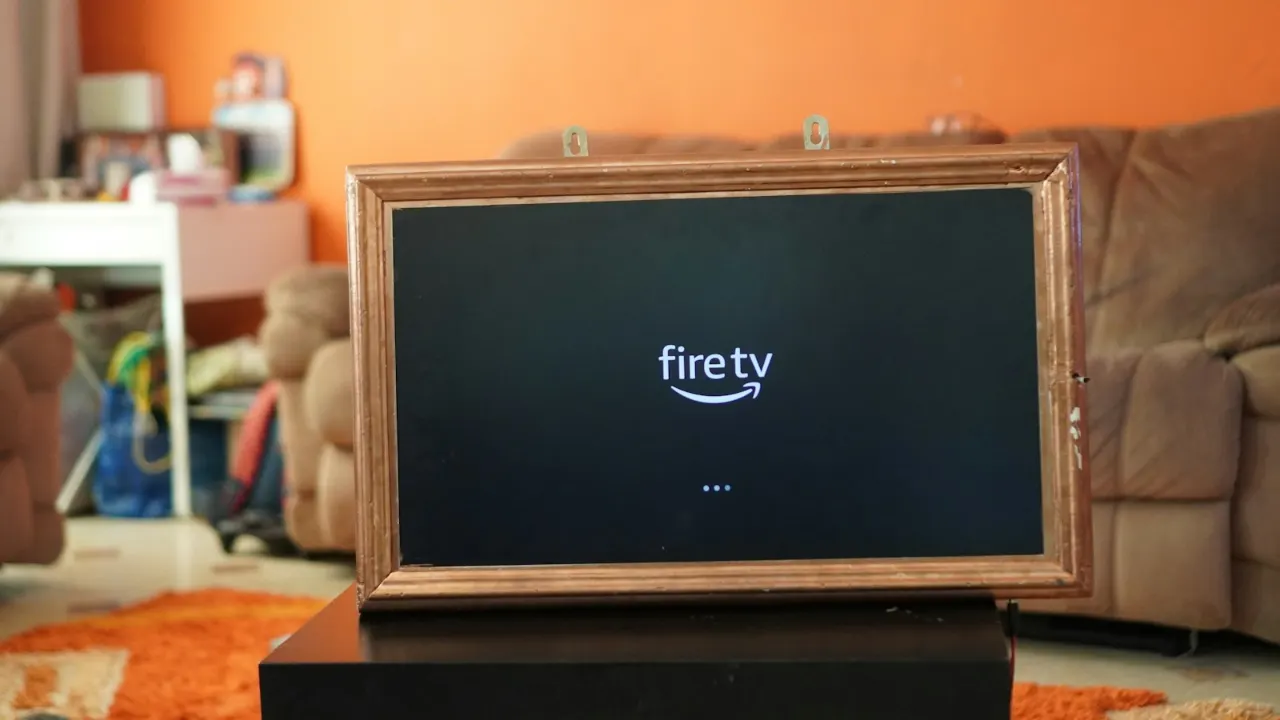
How to set up IPTV on Firestick and Fire TV
The Amazon Firestick is the most popular IPTV device in Europe because it plugs into any TV with an HDMI port. Before you start, check your model: our guide to the best IPTV for Firestick explains which sticks can install player apps. If your IPTV app is in the Amazon Appstore, install it there. If it is not, use Amazon’s free Downloader app and the developer’s official download link.
- 1
Update the Firestick
Go to Settings, then My Fire TV, then About, and choose Check for Updates.
- 2
Install the Downloader app if needed
Search for “Downloader” in the Amazon Appstore and install it. Skip this step if your IPTV app is already in the Appstore.
- 3
Allow installs from Downloader
Open Settings, My Fire TV, Developer Options, then Install Unknown Apps, and switch Downloader on. If Developer Options is hidden, open About and click on your device name seven times to show it.
- 4
Install your IPTV player
Type the official download address from the app developer into Downloader, install the app, and delete the installation file afterwards to save space.
- 5
Log in and load the guide
Open the app, enter your Xtream Codes or M3U details, and wait for channels and the TV guide to finish loading before you start watching.
Installing a modified “premium” version of an app from a random website. These copies can carry malware and can read the login you type. Only use the Appstore or the developer’s own link.
How to set up IPTV on Samsung and LG Smart TVs
Samsung (Tizen) and LG (webOS) TVs cannot install Android apps, so you use IPTV apps from the TV’s own store. Most of them link your playlist to the TV through its MAC address.
- 1
Open the TV app store
On Samsung, press Home and open Apps. On LG, press Home and open the LG Content Store (called Apps on newer models).
- 2
Install an IPTV app
Search for IBO Player or Smart IPTV and install it. Both offer a free trial before a one-time activation.
- 3
Note the MAC address
Open the app. It shows a MAC address and sometimes a device key on screen; write them down exactly.
- 4
Add your playlist online
On your phone or computer, open the app’s official website, enter the MAC address and add the M3U link or Xtream details from your provider.
- 5
Restart the app
Close and reopen the app on the TV. Your channels and guide appear after a short reload.
Some providers can add the playlist for you if you send them the MAC address. It avoids typing a long M3U link on a TV remote.
How to set up IPTV on Android TV, Google TV and TV boxes
Android-based TVs and boxes, including Sony, TCL, Philips and many TV boxes, have the widest choice of IPTV apps because they use the Google Play Store.
- 1
Open Google Play
Sign in with your Google account if the TV asks.
- 2
Install TiviMate or IPTV Smarters Pro
TiviMate gives a cable-box style guide; IPTV Smarters Pro is free and simple. For a full walkthrough of the second, see our IPTV Smarters Pro setup guide.
- 3
Add your Xtream Codes login
Choose “Xtream Codes” in the app, then type the username, password and server URL exactly as your provider sent them.
- 4
Update the TV guide
Let the EPG finish loading, then check that tonight’s listings show your local time.
How to set up IPTV on Apple TV, iPhone and iPad
Apple devices install IPTV players only from the App Store, which keeps the setup simple and safe.
- 1
Install an IPTV player
Search the App Store for GSE Smart IPTV or IPTV Smarters Pro.
- 2
Add a playlist
Choose Xtream Codes or M3U in the app and enter your details. On iPhone and iPad you can paste the M3U link instead of typing it.
- 3
Use AirPlay if you like
From an iPhone or iPad you can send a channel to an Apple TV or AirPlay-compatible TV on the same Wi-Fi network.
How to set up IPTV on Windows and Mac
On a computer, the quickest IPTV setup is IPTV Smarters Pro for everyday viewing or VLC media player for a quick test.
- IPTV Smarters Pro: download it from the developer’s official website, open it and log in with Xtream Codes or an M3U link.
- VLC: open Media, then Open Network Stream (on Mac: File, then Open Network), paste your M3U link and press Play. VLC has no TV guide, so it is best for checking that a stream works.
How to set up IPTV on a MAG box
MAG boxes connect to a portal instead of using a separate app. You send the MAC address printed on the box’s label to your provider, and they activate it on their portal. Our full MAG box IPTV guide covers the portal settings, the MAC address and the most common portal errors.
- 1
Send the MAC address
Find it on the sticker under the box, usually starting with 00:1A:79.
- 2
Enter the portal URL
Go to Settings, System Settings, Servers, then Portals, and type the portal URL your provider sends into Portal 1.
- 3
Restart the box
Save and restart. The portal loads with your channels and guide.
After the setup: 5 checks on your first day
Once channels load, run these checks before you rely on the service for an important match or film night.
- Peak-hour test: watch a live channel for 30 minutes between 19:00 and 22:00, when networks are busiest.
- TV guide time: compare tonight’s listings with a programme you know.
- Catch-up: play a programme from yesterday and skip forward.
- Zapping speed: switch between five channels and note how fast each one starts.
- Speed on the device: run a test on the TV or box itself, not on your phone next to the router.

Quick fixes for common IPTV setup problems
The login fails
Most login errors come from one wrong character. Check the server URL starts with http:// or https:// as sent, and that the username and password have no extra spaces.
Channels buffer or freeze
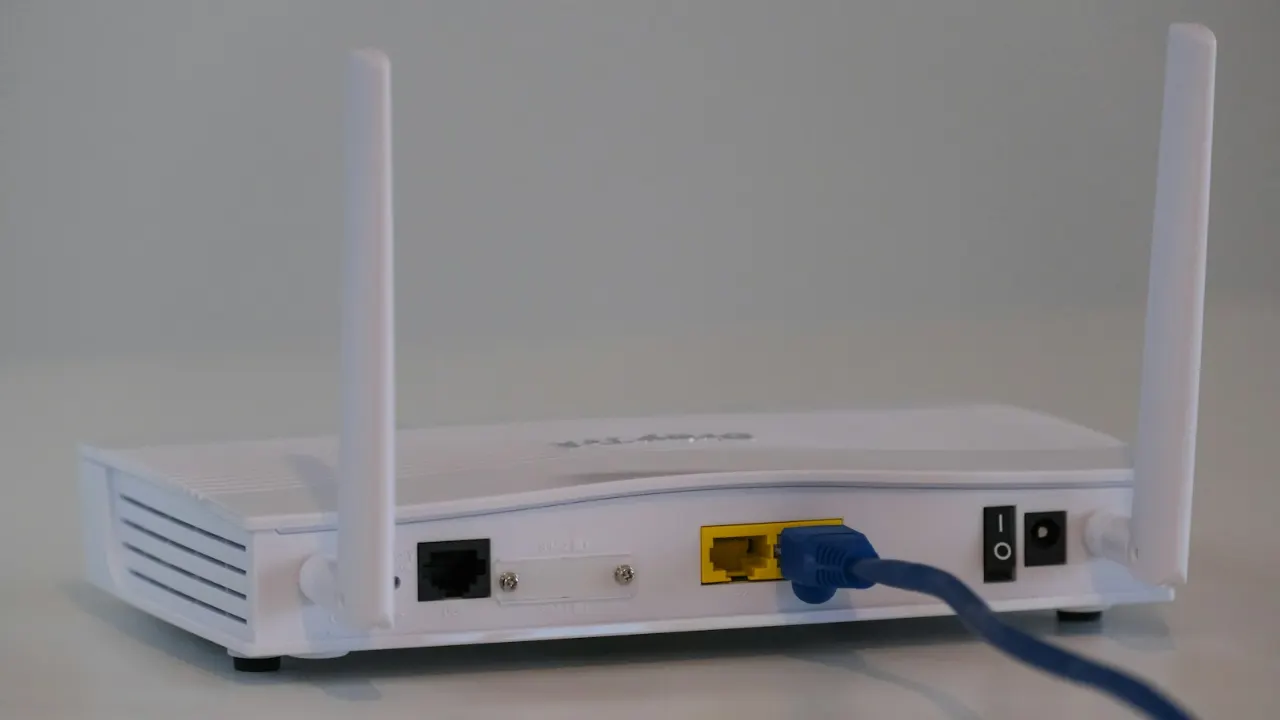
Connect the device with an Ethernet cable if you can, restart the router, and close other apps that use the connection. A device that buffers only in the evening usually has a network capacity problem rather than an app problem.
The TV guide is empty
Update the EPG in the app settings and wait a few minutes. If you use an M3U link, check whether your provider gave a separate EPG link that you need to add.
The app will not install
Free up storage, update the device, and make sure you are using the official store or the developer’s own download link.
IPTV setup FAQ
How long does an IPTV setup take?
About ten minutes on most devices once you have the app and your login details. Smart TVs that use a MAC address can take a few minutes longer because you add the playlist on the app’s website.
Do I need a box to watch IPTV on a Smart TV?
No. Samsung, LG and Android TVs can run IPTV apps directly. A box or Firestick helps only if your TV is old or does not support the app you want.
What is the easiest IPTV setup for beginners?
Android TV or Firestick with IPTV Smarters Pro and an Xtream Codes login. The app loads channels, films and the TV guide automatically.
Can I set up IPTV on more than one device?
Yes, you can install the app on several devices. How many can play at the same time depends on your plan; every 4K IPTV Encoder plan includes one active connection.
What internet speed do I need for IPTV?
Around 10 Mbps of steady speed per screen for HD and about 25 Mbps for 4K. Wired connections are more stable than Wi-Fi.
Set up once, then test properly
Whatever your screen, the setup is the same: the right app, the right login and a fair test at peak time. Start with the one-month Discovery plan, tell us your device, and we will send the login and steps that match it. Viewers in Britain can also read our IPTV UK guide.
See IPTV plans